Appraisal management overview
Manage appraisals using the integrated appraisal feature.
After building an appraisal, you can access and manage details from the appraisal record. When you open an appraisal record, you're given access to any information related to that appraisal, including the appraised values, valuations, documentation, photos, and sketches. You can also associate parties and assign workgroups and tasks to an appraisal.
CAMA's appraisal management includes the following features:
-
Integrated appraisal and assessment management: Appraisals created in CAMA are connected to parcel records and will directly update assessments based on the appraisal's effective date. Appraisals are pulled into parcel assessments for the applicable tax year. Learn more: Create and manage appraisals, Create and manage parcel assessments
-
Stored appraisal versions: Appraisal versions can be created when properties are improved or changed. All version information is stored in CAMA for easy reference and retrieval. Learn more: Create appraisal versions
-
Valuation management: Create and manage basic cost valuations for residential, commercial, and agricultural appraisals. Learn more: Valuation management
Overview of the appraisal record
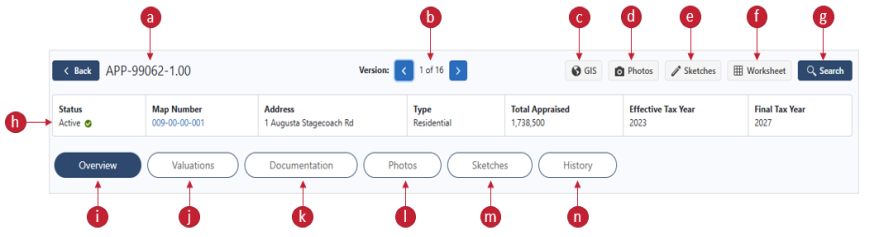
The following image and legend describe the details of an appraisal record.
-
Appraisal ID: The appraisal ID, which is automatically set when a new appraisal or appraisal version is created.
-
Versions: Scroll between multiple appraisal versions using the right and left arrows.
-
GIS: Select to navigate to the GIS link configured in Settings > URL Configurations.
Note: The GIS button only displays if there is an Active URL Configuration set up.
-
Photos: View photos added to the appraisal.
-
Sketches: View sketches added to the appraisal.
-
Worksheet: Select to open the Sales Ratio Worksheet, which allows you to calculate what to set the appraisal to in order to get the correct Sales Ratio value.
-
Search: The Appraisal Search modal allows you to search for other appraisal records from the current page.
-
Quick details: View main details of the appraisal.
-
Overview: Relevant appraisal details, including the Profile, Mobile Homes, Associated Parties, Tasks, Workgroups, and Notes.
-
Valuations: Create and manage appraisal valuations.
-
Documentation: Scan, upload, and manage appraisal documentation.
-
Photos: Scan, upload, and manage appraisal photos.
-
Sketches: Scan, upload, and manage appraisal sketches.
-
History: Audit of appraisal changes.
Use the Sales Ratio Worksheet
Calculate what to set the appraisal to in order to get the correct Sales Ratio value.
- Go to the appropriate appraisal.
- Select the Worksheet button.
- If desired, edit the current Sale Price. This field automatically displays the sale price of the last Transfer that is a True Sale.
- View Appraisals, Statuses, Appraisal Values, and Work Areas in the grid.
The Appraisal defaults to the latest version of the appraisal that is assigned to the latest active tax year for the parcel.
Tip: Select the Previous and Next buttons to scroll between appraisals.
- If desired, edit the current Work Area. This field automatically displays the Appraisal Value.
The Manual Appraisals, Total Appraisals, and Sale Ratio calculate based on the manipulated values.